


Felix in Slack
Felix in Slack lets your team ask Felix questions about your Quantum Metric data from Slack. People @mention Felix in a channel or message it directly, and Felix answers in a thread.
Each Felix app in Slack is tied to one Quantum Metric workspace. It answers with that workspace's data only. You choose which channels it answers in.
Availability:
Felix in Slack is in beta. If you don't see a Felix section on the Slack settings page, contact your Customer Success Engineer.
How Felix in Slack works
- You connect a Slack workspace to Quantum Metric once. Then you add a Felix app for each Quantum Metric workspace you want people to ask about.
- Each app has its own name in Slack, for example @Felix Analytics. People use that name to @mention it.
- Felix answers with the app's access, not the asker's. Everyone who can reach the app gets answers from its Quantum Metric workspace, including people with no Quantum Metric login. In a channel, everyone in the channel can see the answer.
- To continue a conversation in Quantum Metric, people can click on the Open in Quantum Metric link. They sign in as themselves, and their own Quantum Metric access applies from that point on in a continued chat.
Before you begin
You need:
- The Admin role in Quantum Metric for the subscription.
- A Slack account in the Slack Workspace you want Felix in. You don't need to be a Slack admin. Any member can generate the tokens in Step 1 and add Felix apps. If your workspace requires approval for new apps, a Slack admin approves each Felix app before it can be installed (see Step 2).
- A plan for who should see which data. Decide which Quantum Metric workspace each app uses, and which Slack channels it answers in. Remember that everyone in those channels sees the answers.
Step 1: Connect your Slack workspace
You do this once for each Slack workspace. You generate the tokens yourself with your own Slack account; you don't need a Slack admin's tokens. The tokens let Quantum Metric create and manage Felix apps in that workspace. They don't install anything on their own.
- In Quantum Metric, go to Settings › Integrations › Slack.
- In the Slack workspaces section, select Connect a Slack workspace.
- Open api.slack.com/apps while you're signed in to the Slack workspace you want Felix in.
- Under Your App Configuration Tokens, select Generate Token and choose that workspace. Slack shows an access token and a refresh token.
- Paste the access token (starts with
xoxe.xoxp-) and the refresh token (starts withxoxe-) into Quantum Metric, then select Connect.
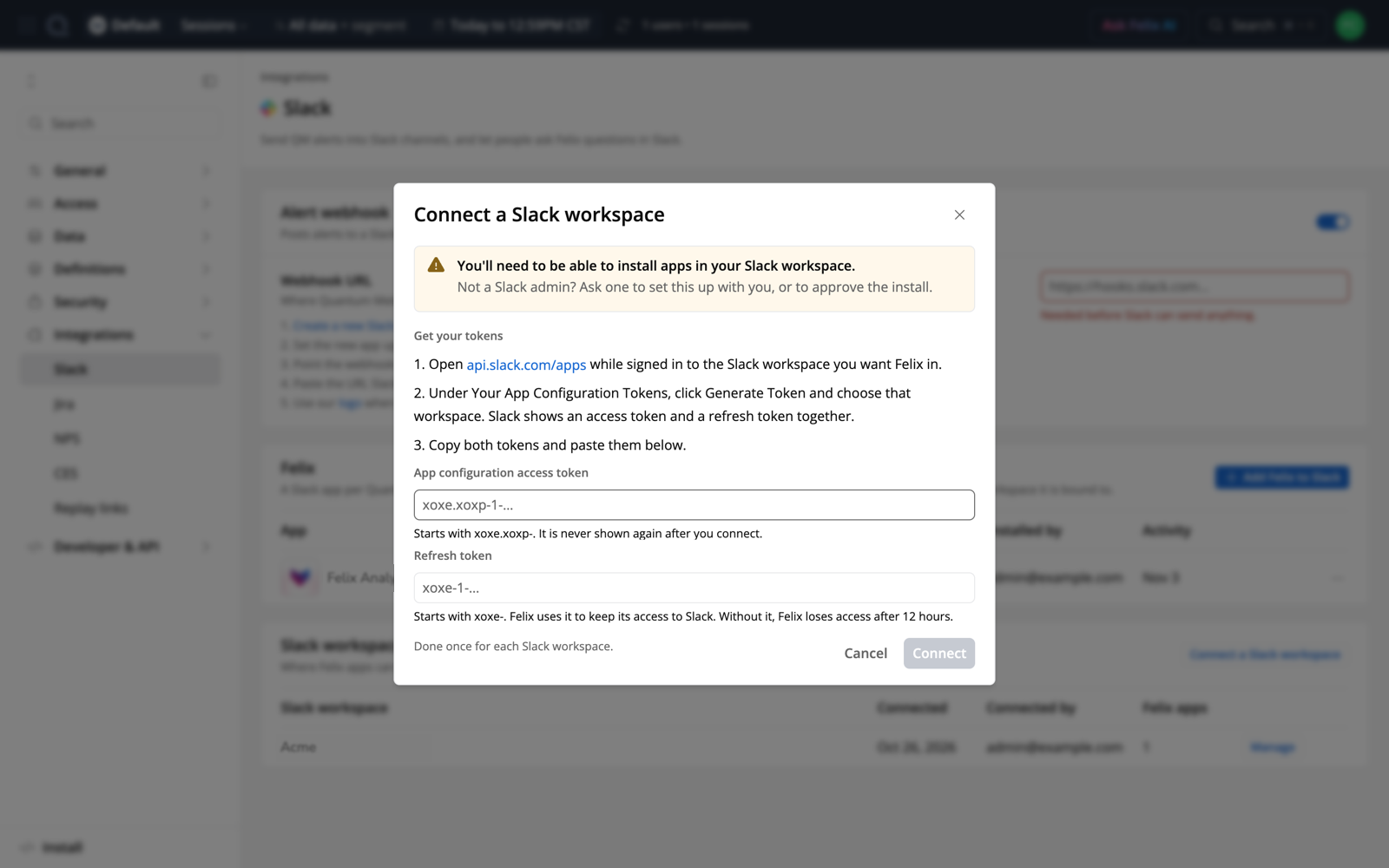
Connect a Slack workspace
Quantum Metric needs the refresh token to keep its access to Slack. Without it, Felix loses access after 12 hours. Neither token is shown again after you connect.
Felix apps are created under the Slack account of the person who generated the tokens. If that account is deactivated, for example when the person leaves your company, Felix keeps answering in Slack, but you can't add, rename or remove apps until someone connects the workspace again with their own tokens. Use an account that will stay active.
Connecting more than one subscription to the same Slack workspace
Slack allows each person only one active set of configuration tokens per Slack workspace. Generating new tokens, or using the same tokens in a second Quantum Metric subscription, replaces the earlier ones.
So when several Quantum Metric subscriptions use the same Slack workspace, have a different Slack user generate the tokens for each subscription. That person must be able to install apps in the Slack workspace.
If the tokens are already in use by another subscription, Quantum Metric warns you before connecting. If you continue, the other subscription's Felix apps keep answering in Slack, and people can still add them to channels. But that subscription can no longer add, rename or remove apps until someone connects the Slack workspace there again with their own tokens.
Step 2: Add Felix to Slack
- In the Felix section, select Add Felix to Slack.
- Choose the Quantum Metric workspace. Everyone in the app's channels will see answers from this workspace's data.
- Enter a Name of up to 35 characters. This is the name people see in Slack and use to @mention the Felix agent.
- Optionally, change the Description (up to 140 characters) and the App icon (a square PNG or JPEG, 512 to 2000 pixels).
- Select Add to Slack. Slack opens and asks you to allow the app. Select Allow.
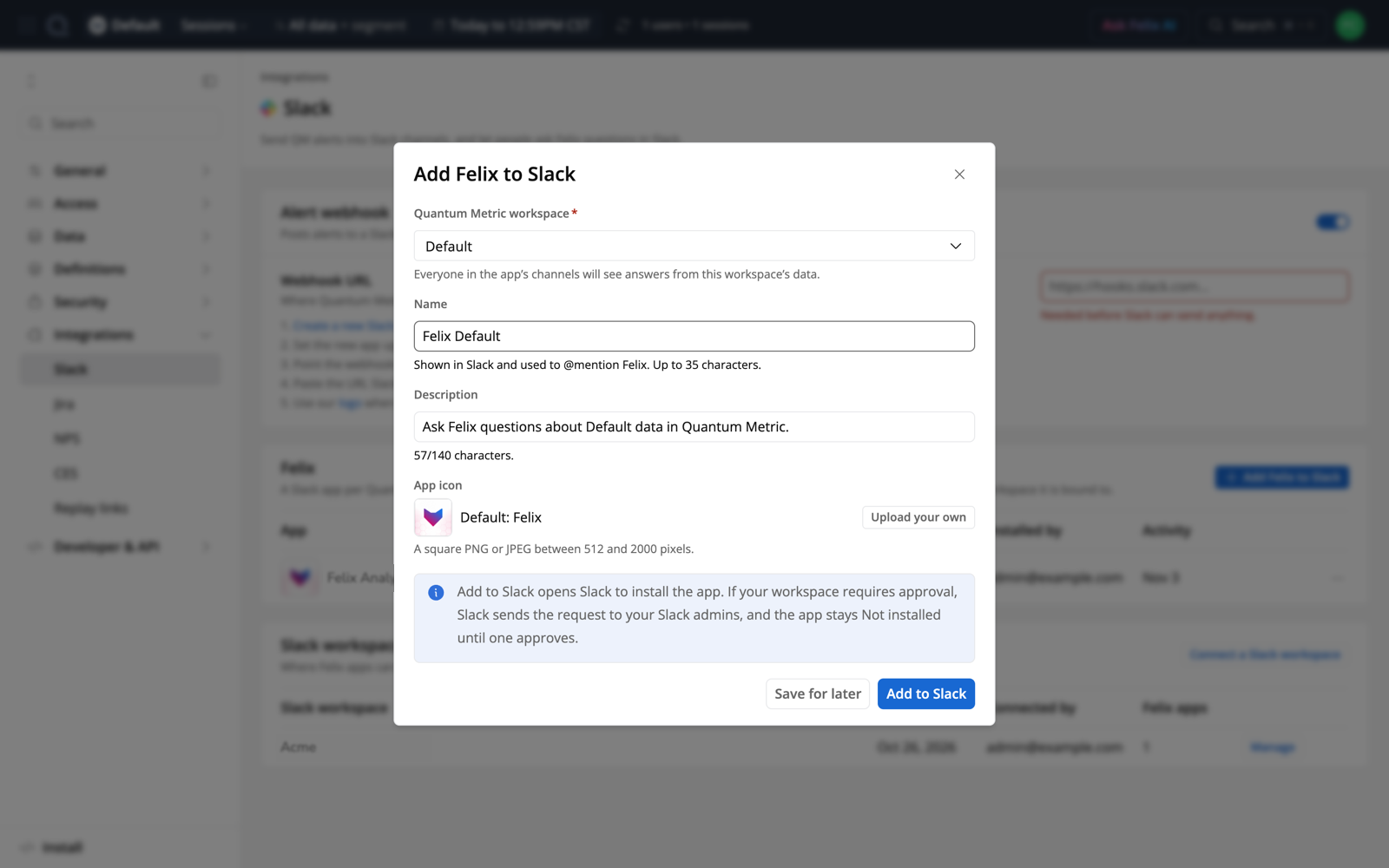
Add Felix to Slack
- If your Slack workspace requires approval for new apps, Slack shows a request form instead of Allow. Submit it, and Slack sends the request to your Slack admins. The app shows as Not installed in Quantum Metric. After an admin approves it, Slack notifies you. Then go back to the app's row in Quantum Metric and select Add to Slack again to finish the install.
- What a Slack admin sees when a member asks to install Felix

- Not ready to install? Select Save for later, then finish from the app's row when you're ready.
- The install link from Quantum Metric is valid for 10 minutes. If it expires, start the install again.
Step 3: Choose where Felix answers
A new app doesn't answer anywhere until you turn it on.
- In the app's row, open the … menu and select Edit channels.
- Under Channels, choose one:
- None: Felix doesn't answer in any channel.
- Selected channels: Felix answers only in the channels you choose. If someone invites it to another channel, it stays silent there. Felix joins the public channels you select. For a private channel, invite Felix to it in Slack first; it then appears in the list.
- All channels: Felix answers in any channel it's invited to. Any Slack member can invite it.
- Turn Direct messages on or off. This also controls the Felix pane in Slack's sidebar.
- Leave Shared channels (Slack Connect) off unless people from other companies should be able to ask Felix about your data.
- Select Save.
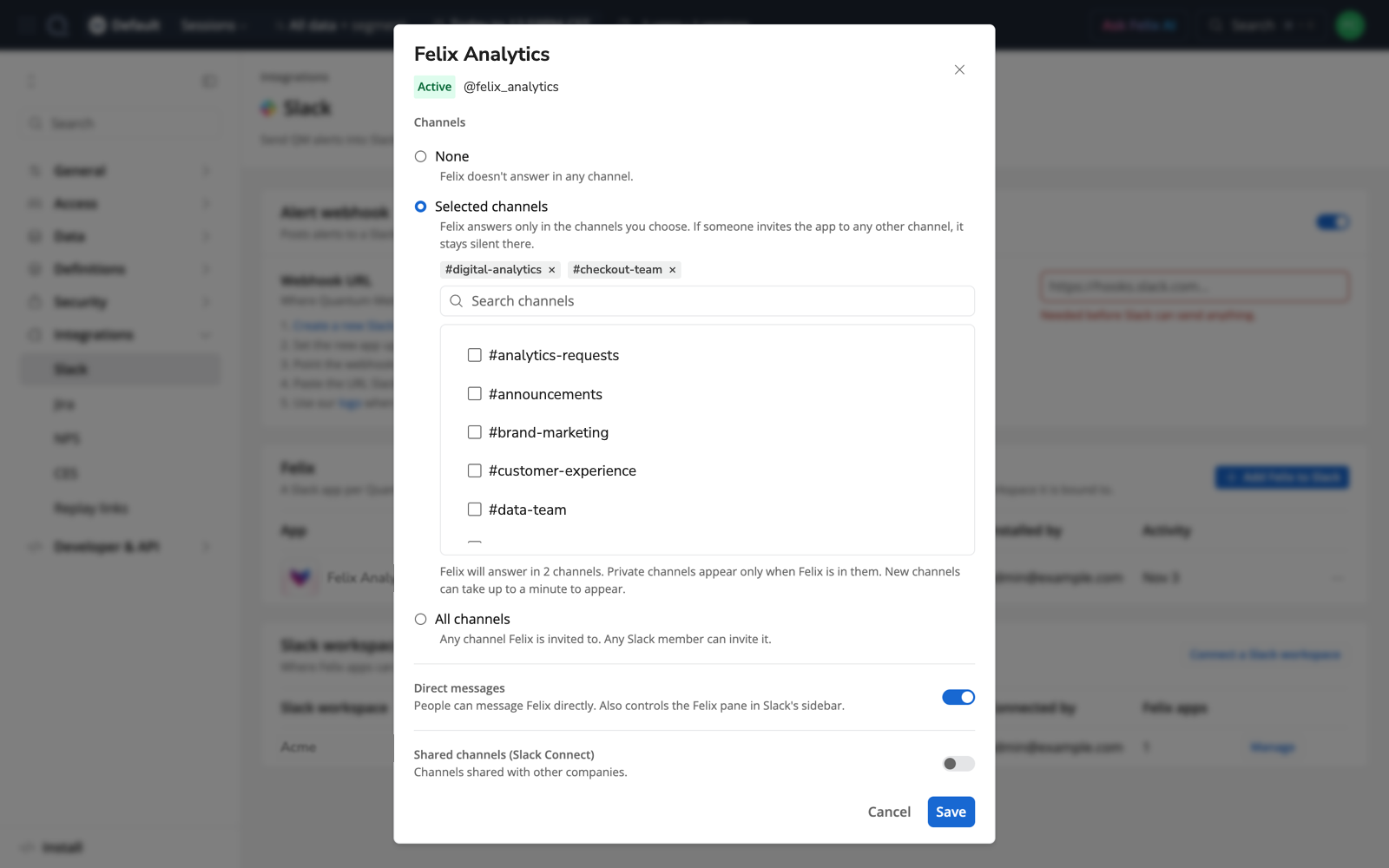
Edit channels
New Slack channels can take up to a minute to appear in the list.
Verify the setup
In one of the selected channels, @mention the app and ask a question, for example: @Felix Analytics how many sessions did we have yesterday? Felix shows that it's working, then replies in a thread.
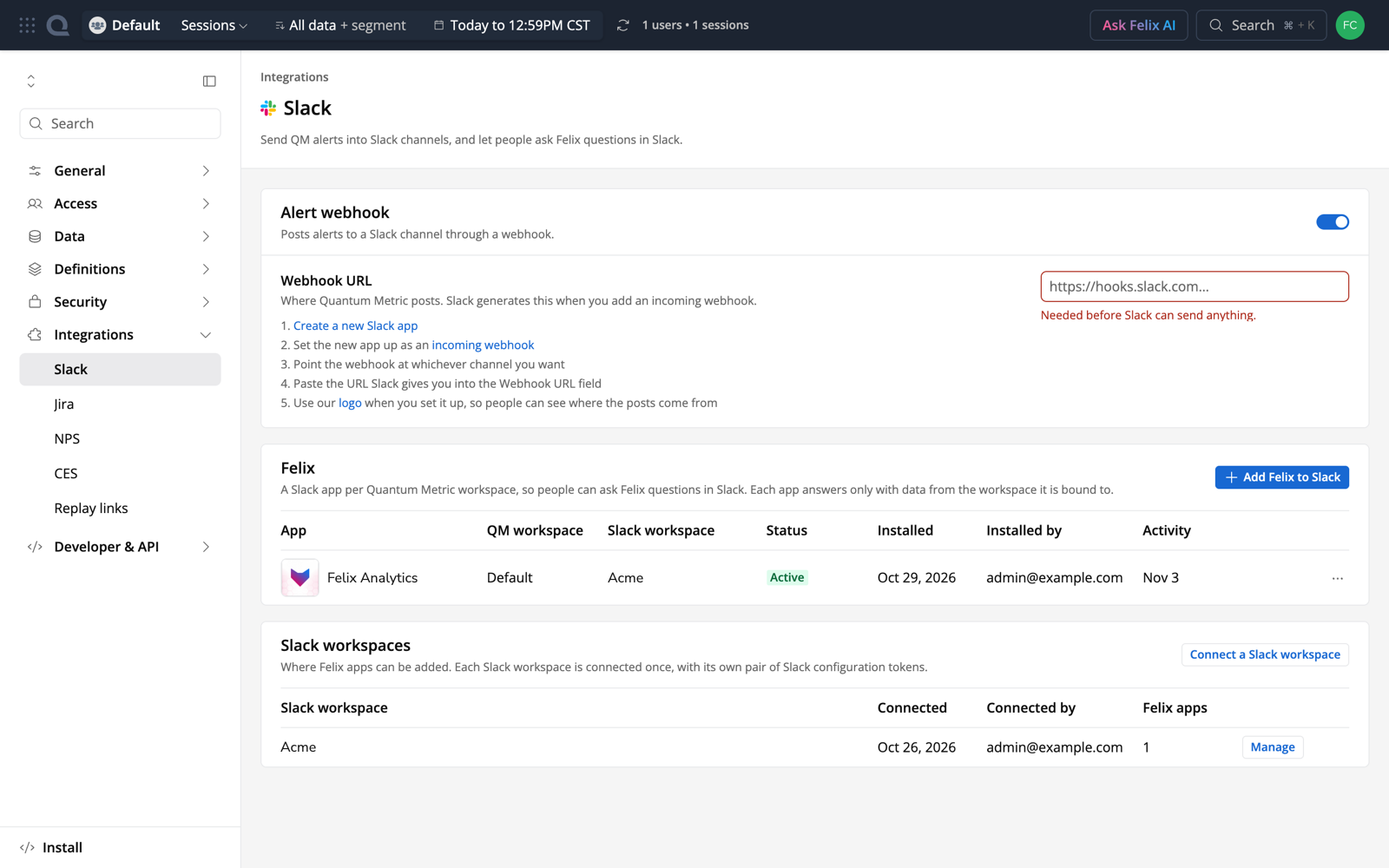
Settings › Integrations › Slack, with one app Active
Using Felix in Slack
Where | How |
|---|---|
A channel | @mention the app. Felix replies in a thread. To ask follow-up questions, reply in the same thread; Felix keeps the context of that thread. |
A direct message | Message the app directly, or open the Felix pane in Slack's sidebar. Requires Direct messages to be on. |
Quantum Metric | Select Open in Quantum Metric on an answer to continue the conversation in Felix chat, signed in as yourself. |
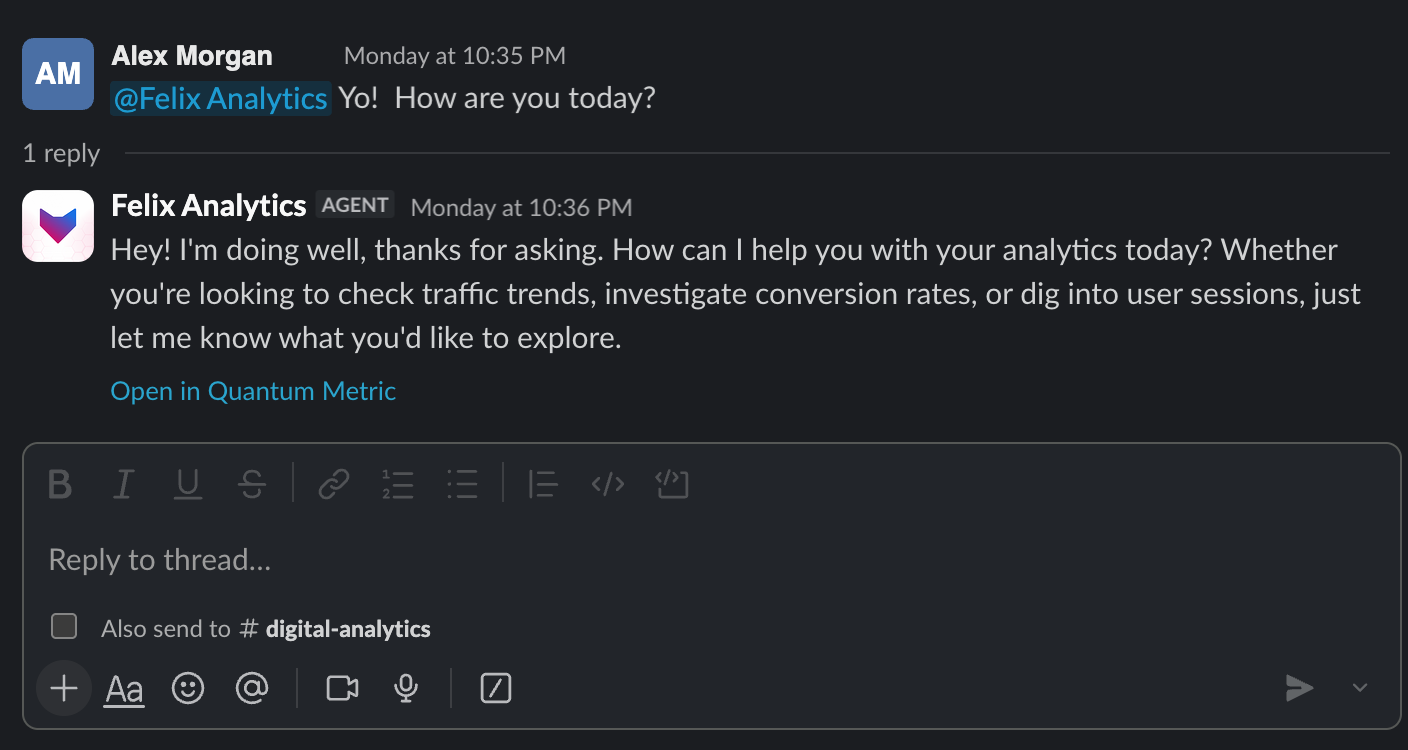
Felix answers an @mention in a thread. Open in Quantum Metric continues the conversation in Felix chat.
Answers can include text, tables, charts and files such as CSV exports. Felix may also offer buttons to help you choose what to look at next.
Managing Felix apps
From an app's … menu:
- Edit channels: change where Felix answers.
- Edit details: change the app's name, description or icon.
- Open in Slack: go to the app in Slack.
- Remove: remove the app from Quantum Metric and from Slack.
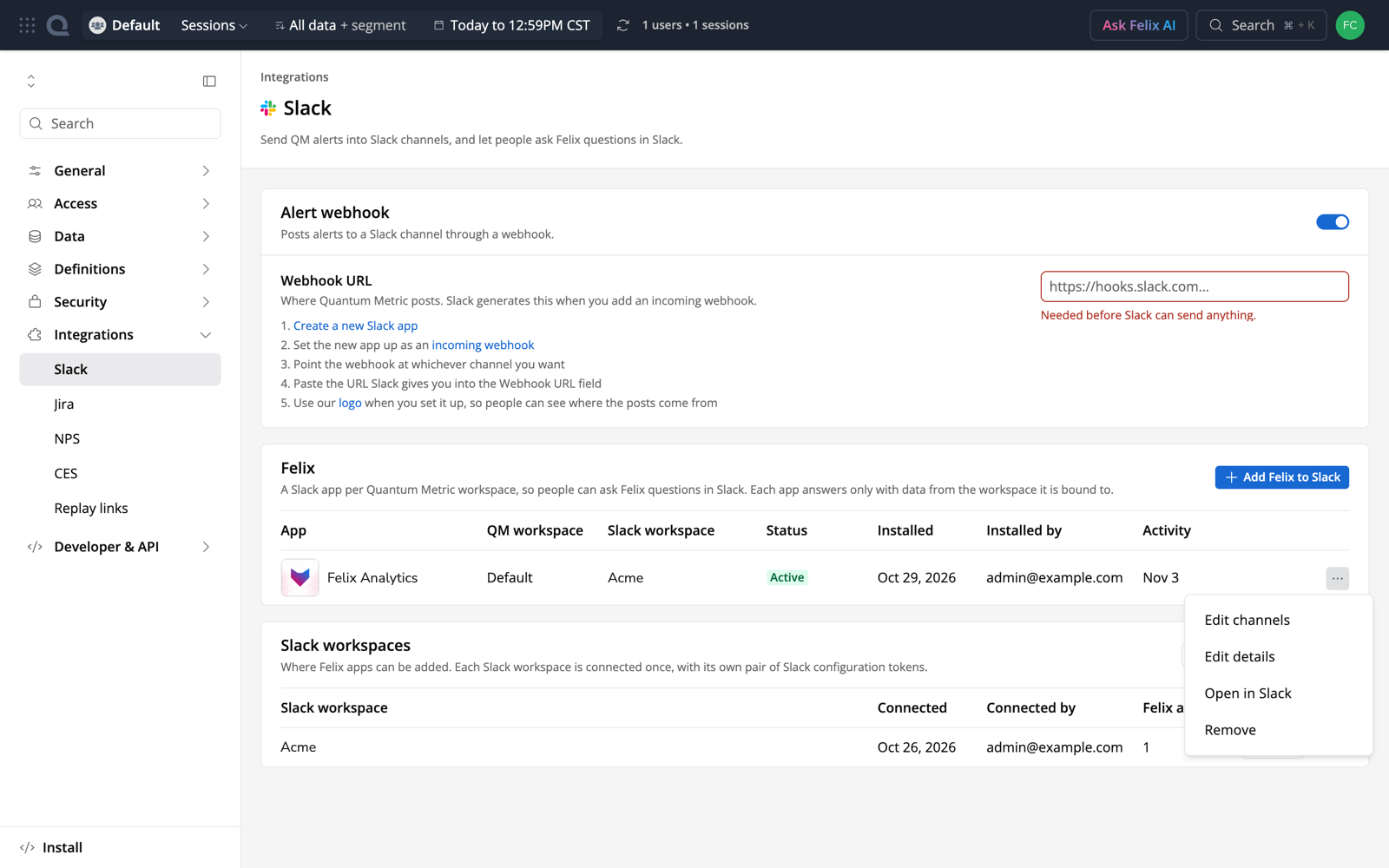
App actions
To replace the Slack configuration tokens, select Manage next to the Slack workspace. Disconnecting a Slack workspace removes every Felix app in it.
The app's status shows on its row:
Status | Meaning |
|---|---|
Not installed | The app is saved but not installed in Slack yet, or it's waiting for a Slack admin to approve it. |
Off | The app is installed but doesn't answer anywhere. Use Edit channels to turn it on. |
Active | Felix answers in the channels or direct messages you chose. |
Disconnected | Quantum Metric lost its connection to Slack, for example because the app was uninstalled in Slack. Reinstall the app or connect the workspace again. |
Security and data access
- Each app answers only with data from the Quantum Metric workspace it's tied to.
- The app doesn't check the asker's own Quantum Metric permissions. Anyone who can reach the app in Slack gets answers from that workspace, and everyone in a channel sees them. Control this with the workspace you choose and the channels you allow.
- Quantum Metric stores Slack's tokens encrypted.
- Open in Quantum Metric link requires the person's own Quantum Metric login and access to that workspace.
Limitations
- Felix reasons over data that is captured, mapped, retained and permitted.
- Felix's answers to the same question may differ between runs.
- One Felix app per Quantum Metric workspace. To give people access to several workspaces, add one app per workspace.
- Felix ignores files attached to messages, and messages from other bots and apps.
- A single answer can take up to 15 minutes. Felix shows progress while it works.
- Felix in Slack is managed only from the new Settings layout, and is in beta.
Troubleshooting
Symptom | Cause | Fix |
|---|---|---|
No Felix section on the Slack settings page | Felix in Slack isn't on for your subscription, or you don't have the Admin role | Ask a Quantum Metric admin to check your role, or contact your Customer Success Engineer |
"You need permission to manage settings to change Felix in Slack." | Your account isn't an admin of the subscription | Ask a Quantum Metric admin to give you the Admin role, then reload the page |
The app stays Not installed after Add to Slack | Your Slack workspace needs an admin to approve new apps, or the app was approved but the install wasn't finished | Ask a Slack admin to approve the Felix app. Once it's approved, select Add to Slack on the app's row again |
Felix replies "Felix isn't enabled in this channel. A QM admin can enable it in QM Settings." | The channel isn't in the app's selected channels | Add the channel with Edit channels |
A private channel is missing from the channel list | Felix isn't a member of it yet | Invite the app to the channel in Slack, wait up to a minute, then reopen Edit channels |
Quantum Metric warns that the tokens are already in use by another subscription | The same Slack user's configuration tokens connect this Slack workspace to another subscription | Have a different Slack user generate tokens for this subscription. See Connecting more than one subscription to the same Slack workspace |
Open in Quantum Metric shows an access error | That person doesn't have access to the app's Quantum Metric workspace | Give them access to the workspace, or keep using Felix in Slack |
Getting help
Contact your Customer Success Engineer for help setting up Felix in Slack.